
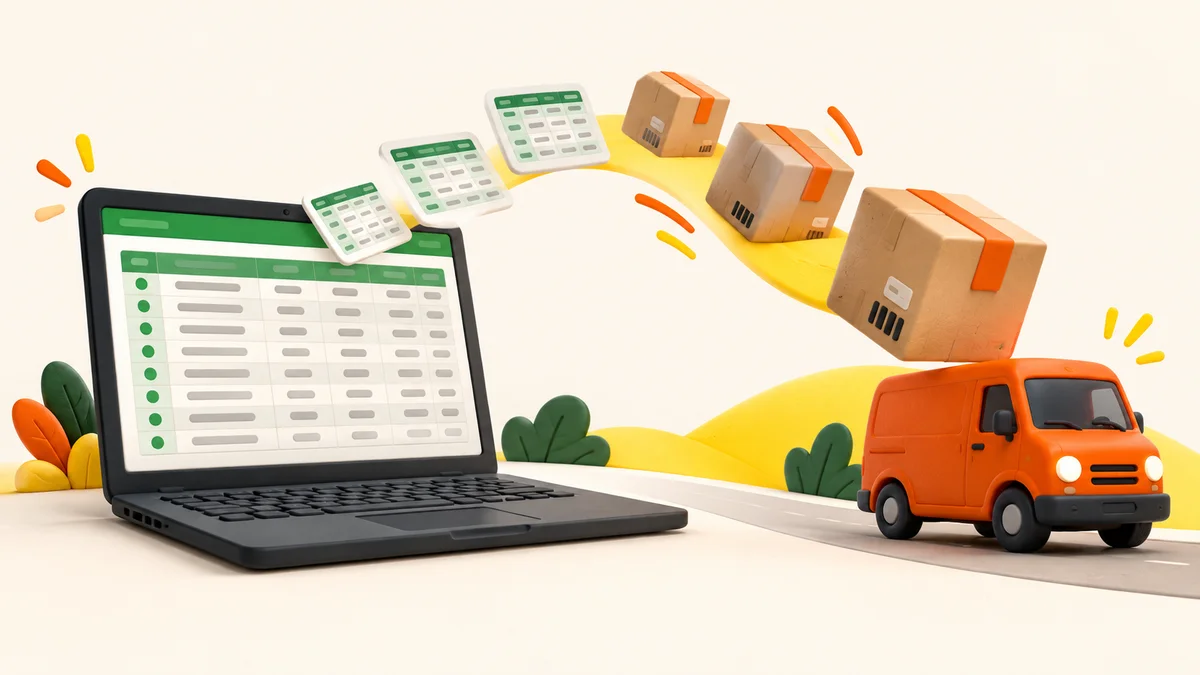
Your orders are already in a spreadsheet. Your shipping day should not start with typing them all out again. Sendaparcel’s Excel order import brings delivery details into one place, ready for a quick check and a happy send-off.
Use the downloadable template to import up to 100 orders at a time, preview what is ready, and fix anything that needs attention before you continue. It is a practical option for small businesses, market sellers and anyone organising a batch of Australian parcel deliveries.
Excel shipping imports: less retyping, more moving
An Excel import adds orders to your imports workspace. It does not book a courier, confirm a collection, or take payment. Your orders remain available for review before you choose delivery options and complete the booking flow.
You can prepare your spreadsheet before signing in. To upload and manage orders, create your free Sendaparcel account or sign in.
How to import shipping orders from Excel
1. Start with the Sendaparcel template
Download the Excel order template and enter one order per row beneath the existing headings. Save the workbook as .xlsx, keep it under 2 MB, and include no more than 100 orders per upload. Older .xls files need to be saved as .xlsx first.
Keep your order data on the Orders worksheet. Use plain values rather than formulas, and remove cell errors before uploading. The template keeps the column names aligned with the details Sendaparcel needs.
2. Give each order a clear introduction
Include a unique order reference, contact name, phone number, street address, suburb, state and postcode. Add the recipient’s email, company, unit or building, delivery notes and item details where useful. Mark whether the destination is residential or a business.
Check apartment numbers and phone numbers carefully. Keep postcodes and phone numbers as text in Excel where possible so leading zeros stay in place. An accurate address is a much better travelling companion than a guess.
3. Add parcel measurements now, or during review
The template includes parcel quantity, length, width, height and packed weight. You can fill these in before importing, or leave all parcel measurements blank and add them later during shipping review.
If you add measurements in Excel, complete all three dimensions in whole centimetres and the packed weight in kilograms. Each parcel can weigh up to 25 kg, and length + width + height must total 180 cm or less. Parcel quantity is for identical parcels. For boxes with different measurements, read how to send different box sizes together.
4. Preview before you import
Open Excel imports, choose your workbook and select Preview orders. The preview shows new orders ready to import, orders already imported, and rows needing correction.
Fix any flagged rows in Excel and upload the file again. Only new, valid orders are added. Repeated references within a workbook are flagged, and references already imported from Excel into your account are skipped to help avoid duplicate entries.
5. Review, choose and send
Open each imported order to check the delivery address, contact details and item information. Choose your pickup details and confirm the parcel measurements before continuing to courier options. You can save a useful delivery address in your address book for next time.
Check that the original order is paid and approved to ship in your own records. Importing an Excel row does not verify the customer’s payment. Review the delivery option and final price before completing checkout; the upload itself does not create a courier booking or charge your account.
A few spreadsheet questions, unpacked
Can I upload more than 100 orders?
Split a larger list into separate workbooks of up to 100 orders each. Keep every file within 2 MB and give each order its own reference.
Do I need a connected online store?
No. Excel import lets you add orders from a spreadsheet without connecting a shop. If you also sell online, explore the Shopify integration article for its current availability and workflow.
Where do my orders go after import?
They appear in your imports workspace for review. Read your shipping dashboard guide to see how orders, addresses, labels and tracking fit into your sending day.
Does free account creation mean free delivery?
No. Creating an account is free, and Sendaparcel charges no platform fee. Freight charges, GST and applicable shipping surcharges still apply. Review the final total before payment.
Your spreadsheet deserves a better send-off
Start with the Excel template, then open Excel imports when your orders are ready. New here? Create your free account and give your next batch of parcels a little less admin and a lot more momentum.